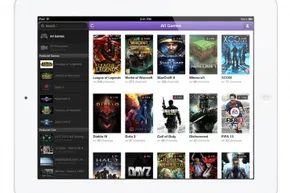
You don’t need a studio budget to start broadcasting on Twitch. Just a computer or console that can run the right software, a stable broadband connection, and the will to talk to an empty room (until the chat fills up). If you want your face in the frame and your voice over the gameplay, you’ll need a webcam and a microphone. Your laptop’s built-in mic works, but it sounds like you’re recording from inside a shoebox. Upgrade eventually.
PC Specs for Twitch Broadcasting
If you’re streaming from a Windows machine, don’t obsess over top-tier gear. The baseline is surprisingly accessible. You need a CPU at least as strong as an Intel Core i5-4670 or its AMD equivalent. Pair that with 8GB of DDR3 SDRAM. The OS needs to be Windows 7 Home Premium or newer. Your graphics card must support DirectX 10 and up.
Mac users aren’t left out. A 2.3GHz Intel Core i5 is the starting line. You’ll need 4GB of DDR3 memory. A dedicated GPU helps—AMD Radeon cards are cited as a solid option.
Here’s the thing: if your rig is even remotely modern, test it first. Don’t bin your current setup. See if it holds up under load.
Console Broadcasting: PS4 vs. Xbox One
Consoles offer a lower barrier to entry. The Xbox One and PlayStation 4 both ship with native Twitch support. No capture cards. No encoding headaches. Just push a button.
PlayStation 4 led the charge. By late 2013, PS4 users accounted for 20% of Twitch broadcasters. The process is dead simple. Hit the Share button on your DualShock 4 controller. Select “Broadcast Gameplay.” Pick your channel. Adjust settings. Hit start. You can stream to Twitch or Ustream. If you’re new to Twitch, the console prompts you to sign up right there.
There are limits. PS4 restricts broadcast length. Want to show your face? You need the optional PlayStation Camera. It’s not built into the console.
Xbox One took a slightly different approach. Microsoft integrated Twitch support in March 2014. The app lets you view any Twitch stream, not just Xbox content. You can archive your broadcasts. To go live, use the voice command “Xbox, broadcast” or navigate the app via controller. The Kinect camera handles your face cam. You can even snap the Twitch app to see your stream through your viewers’ eyes while you play. Viewers can chat or request to join your party.
Note that Xbox 360 only lets you watch the top 300 channels. It doesn’t support broadcasting.
Older Consoles and Capture Cards
Got a PS3 or an older Xbox? You’re not stuck watching. Use a capture card to bridge your console to your PC. The cables depend on your hardware, but the concept is the same. Feed the console’s output into the card, then into your computer.
Twitch Support Center has tested several models. The AVerMedia Game Broadcaster HD (C127) is one option. The HD DVR/DarkCrystal HD Capture Pro (C027) is another. AVerMedia also offers the Live Gamer HD (C985). Elgato Game Capture HD and Roxio Game Capture HD Pro are also viable. Each card has specific compatibility with popular broadcasting software.
Check the support posts for each card. They list what works and what doesn’t. Once you have the hardware sorted, you’ll need software to encode and push the stream. That’s the next step.